9 AI food photography tips to make your restaurant menu on DoorDash stand out
9 AI food photography tips to make your restaurant menu on DoorDash stand out
Key takeaways
- Upload photos of the dish you serve in a 16:9 landscape shape such as 1920 × 1080 pixels, under 2 MB, with no text or borders
- Shoot each dish on your phone near a window, then use AI to fix the light, background, and crop without adding anything the kitchen doesn't send
- Before you upload, check every AI photo against the plate: the count, sides, garnish, container, and portion
- In SecretSauce, a DoorDash menu handles the background, angle, size, and matching look for you. Add your dishes, click "Generate photos," approve them, and download the whole menu as one zip
In 2022, DoorDash studied more than 15,000 local small merchants and found that menus with item photos get up to 44% more monthly sales. The photo is the first taste customers get of a dish before they tap it.
Food photography for restaurant menu listings takes more than snapping the plate, though. DoorDash rejects photos that are the wrong shape, badly lit, set on a background that looks fake, or different from what customers receive. And when a dish has no photo, DoorDash may add one itself from your Instagram business account or from Yelp, so a dim shot someone posted on Yelp could end up selling your best dish. Meanwhile, a professional shoot requires a photographer and a free afternoon.
Today, you can get DoorDash photos approved without booking a photoshoot. Shoot each dish on your phone, and an AI food photography tool like SecretSauce puts it in DoorDash's style and size in a few clicks. Your job is to check each photo against the plate before it goes live. Your listing ends up looking like your restaurant, and when the menu changes, you reshoot only the new dish. If you haven't built your menu yet, start with how to design a restaurant menu using AI.
Start AI food photography with a photo of the dish you serve
AI food photography means using AI to fix or restyle a photo of your food: the light, the background, the crop, the size. On DoorDash, it only works when the photo underneath is of your own dish.
1. Photograph the dish that leaves your kitchen
DoorDash asks for real photos of your actual item and rejects clip art, illustrations, and stock graphics. It also wants photos you own the rights to, so a better-looking burger from a stock site won't work. AI can make your photo look better, but the food in it has to be the food you plate.
So shoot the dish as it goes out. If your chicken bowl ships in a kraft box, photograph it in the kraft box, because that's what lands on the customer's table. Pick a quiet hour between services and take each photo with the dish fresh off the pass, so the AI starts from food at its best.
In SecretSauce, that phone photo becomes the starting point for every photo of the dish. Open the dish on your menu, click "Add photo," upload it, and tick "Also use as the dish card's reference photo."
Do your food menu photography on your phone first
The better your phone photo, the less the AI has to fix, and the less it can get wrong.
2. Use window light in the morning or late afternoon
DoorDash's merchant blog recommends natural light from a window in the morning or late afternoon when daylight is soft, and no more than one artificial light, overhead or to the side. Indoor bulbs tend to tint food yellow or green.
Put a table next to your brightest window and switch off the overhead lights. Stand with the window to your side, never behind you, so your own shadow stays off the plate. If the kitchen has no window, carry the plate to the dining room before service opens.
3. Frame the whole plate in a landscape shot
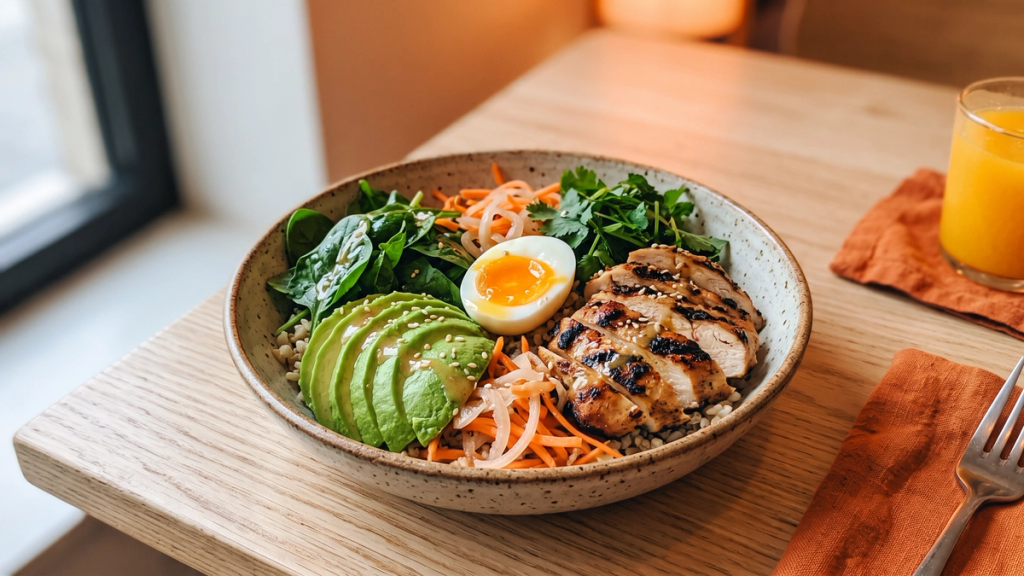
DoorDash only accepts landscape item photos in a 16:9 shape, the shape of a TV screen, and tells merchants not to crop vertical photos to fit because it usually cuts off the food. Shoot landscape from the start.
Then step back farther than feels natural. DoorDash wants at least 80% of the item in frame and the dish filling 50% to 70% of the photo, because customers judge the portion from it. A close-up of the crispy edge of your fried chicken may look great on Instagram but will get rejected on DoorDash. The rim of the plate and the fries on the side should both be in the shot.
4. Match the angle to the dish
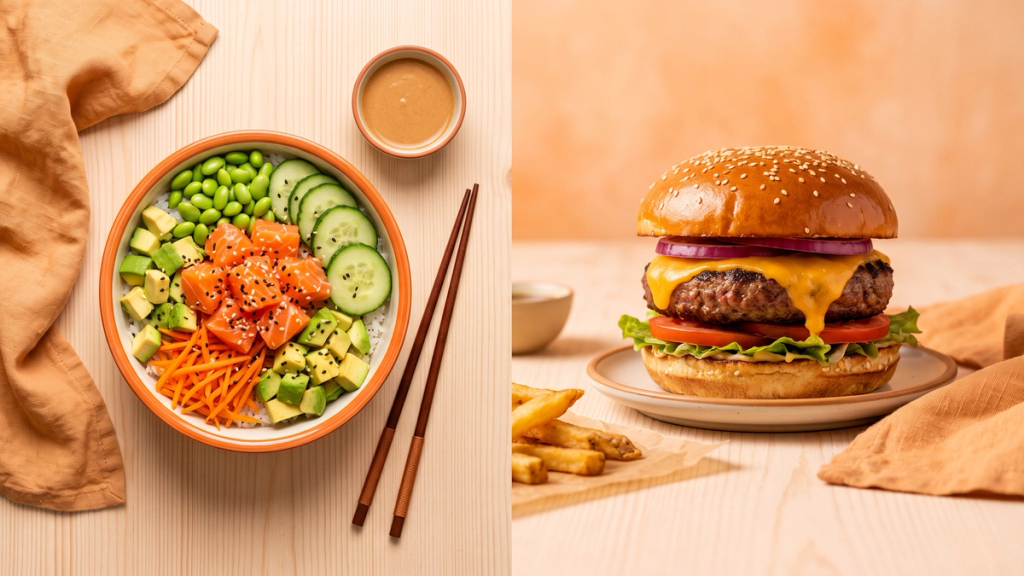
Shoot flat dishes, like pizza, salads, poke bowls, and sushi platters from directly above. Shoot tall ones, like burgers, sandwiches, layered desserts, and drinks, from low down so the layers show. DoorDash's blog makes the same split: overhead for a composed salad, straight-on for height. SecretSauce's DoorDash style automatically uses the same rule, shooting flat dishes from above and burgers, sandwiches, and drinks from about 30 degrees.
AI can redraw a dish from a new angle, but it has to invent the parts your photo didn't show, like the far side of a burger or the bottom layer of a cake. If the AI photo's angle differs from your phone photo, check those parts closely. If they don't match the dish, reshoot at the angle you want.
Fix the photo with AI without changing the dish
Once you have a sharp landscape photo, AI can do what used to need a reshoot: even out the light, swap a busy prep counter for a clean surface, and straighten the crop.
5. Put the dish on a plain, natural surface
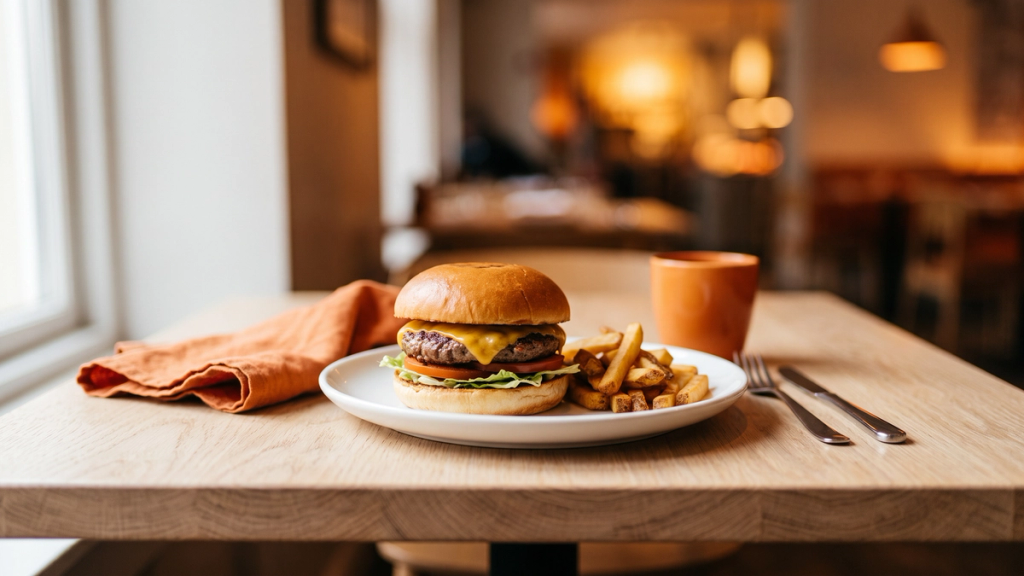
DoorDash wants dishes on natural, neutral surfaces like tables, counters, and trays. It rejects backgrounds that look creative, overly colorful, or photoshopped, and solid-color backdrops that pull attention away from the food.
When you ask the AI for a new surface, pick one the dish could sit on in your restaurant: pale wood, stone, a clean counter. Pale wood with soft light from one side is a good default, because it looks like a table people eat at and keeps attention on the food. Then ask one question about the result: does the dish look the same as it did on the pass, with only the surface changed?
In SecretSauce, you don't have to pick. A DoorDash menu starts in the "DoorDash Full Portion" style, which you'll see at the top of the menu. It puts every dish on pale natural oak in soft window light, centered and filling 50% to 70% of the frame, so keep it for DoorDash. The "Change style" button lists other ready-made looks, like "Moody Tablescape Autumn Café" and "Hard Flash Seamless Backdrop." Save those for Instagram and ads, because their colorful, styled backgrounds are the kind DoorDash rejects.
Show everything customers get with the dish
Generic AI image tools can break DoorDash's next rule: the photo must show exactly what's included with the item, at a realistic portion, and "not an idealized or generic version." DoorDash also rejects "hero shots" that put items sold separately in one photo.
6. Check every AI photo against the plate
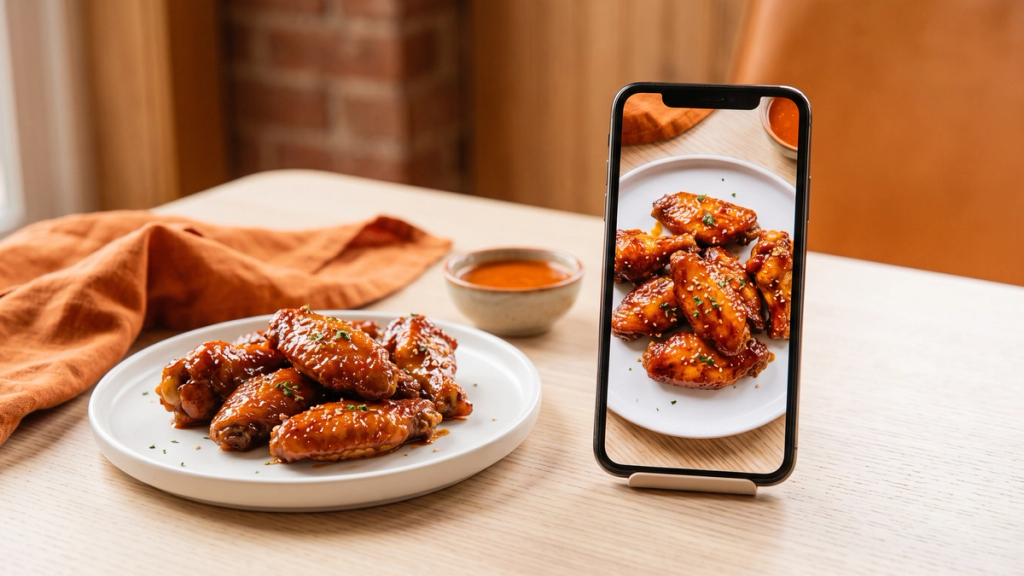
A generic AI image tool can make food look better than it is. It adds a sprig of herbs, a lemon wedge, a wisp of steam, a drizzle of sauce, or a fuller bowl. But ultimately, it’s not accurate and DoorDash says accurate photos help prevent "confusion, disappointment, and order issues."
SecretSauce's DoorDash style keeps the exact food, portion, garnish, and plate from your photo. It never adds, removes, or swaps food, and it shows the whole order with its included sides and nothing that isn't served. SecretSauce doesn't check the result for you, though, so plate the dish, put your phone next to it with the photo open, and check 5 things:
- Count: 6 wings on the menu, 6 wings in the photo
- Sides: if fries come with the burger, show them. If the drink costs extra, leave it out
- Garnish and sauce: only what your line cook adds
- Container: the same plate, bowl, or box it goes out in
- Portion: the bowl in the photo looks as full as the one in front of you
If any of the 5 is off, tap the three dots on a menu photo in SecretSauce and click "Redo."
Match the DoorDash photo requirements when you export
DoorDash's help center lists its photo requirements and the most common reasons it rejects photos. Size and overlays are the 2 you control at export.
7. Export every photo at the DoorDash photo size
These are DoorDash's minimums as of November 2026. Bigger is fine as long as the shape matches, so export item photos at 1920 × 1080 pixels, which is exactly 16:9 and clears the minimum.
| Photo type | Minimum size | Shape | File size | What DoorDash allows |
|---|---|---|---|---|
| Item photo | 1400 × 800 px | Landscape 16:9 | Under 2 MB | One menu item, centered. No text, overlays, or borders |
| Header and carousel photo | 1400 × 800 px | 4:1 on the website, 16:9 in the app | Under 2 MB | No text, borders, or overlays. Several items only if they were photographed together |
| Logo | 230 × 230 px | Square | Under 2 MB | Your logo, clear and recognizable |
In SecretSauce, the DoorDash style sets every photo to 1920 × 1080 for you, so there's nothing to resize. When the menu's done, click "Use this menu," then "Download photos," and you get one zip with a photo for every dish.
DoorDash's page gives 2 limits for item photos, 2 MB in one place and 16 MB in another. Keep files under 2 MB to pass both, and check the sizes in your zip before you upload. If an export is too big, save it as a JPEG at slightly lower quality.
The header is the photo at the top of your DoorDash store page, and the carousel is a scrollable set of photos customers flip through on the same page. The header needs one extra step. DoorDash shows it 16:9 in the app and 4:1 on the website, a long thin strip, so keep the food in the middle band of the photo. Then open your store on the DoorDash website and check that the strip still shows the food.
Don't stretch a small photo to reach 1400 × 800. DoorDash rejects blurry, pixelated, or stretched photos, so start from your phone's full-size original. To check a photo's size, right-click it and choose Get Info on a Mac, or Properties, then Details, on Windows. To upload a photo, go to Menu in the DoorDash Merchant Portal, click the item, and drag the file in or pick one from the photo library.
8. Keep text, borders, and watermarks out of the image
DoorDash wants photos to look the way they were taken, with no added text, graphics, logos, borders, or watermarks. White bars left by bad cropping count as borders. Your logo or any text is fine only where it's printed on the item itself, like a branded cup or box.
If you want to flag a dish as new or a favorite, say so in the item's description on DoorDash instead. SecretSauce's DoorDash style adds no text, logos, or people. If you use another AI tool, ask for a plain photo of the dish, because a request for a "promo image" can come back with words on it.
Keep your DoorDash food pictures in one consistent style
You’re not at the finish line yet. Beyond the light, DoorDash's blog recommends sticking to 1 or 2 colors or patterns of dishware and keeping each meal at about the same size in the frame, so the whole menu looks consistently like one restaurant. This is the part many AI tools get wrong - brand consistency is notoriously difficult. SecretSauce’s Brand Brain takes care of this.
9. Shoot one test dish then match the rest of the menu
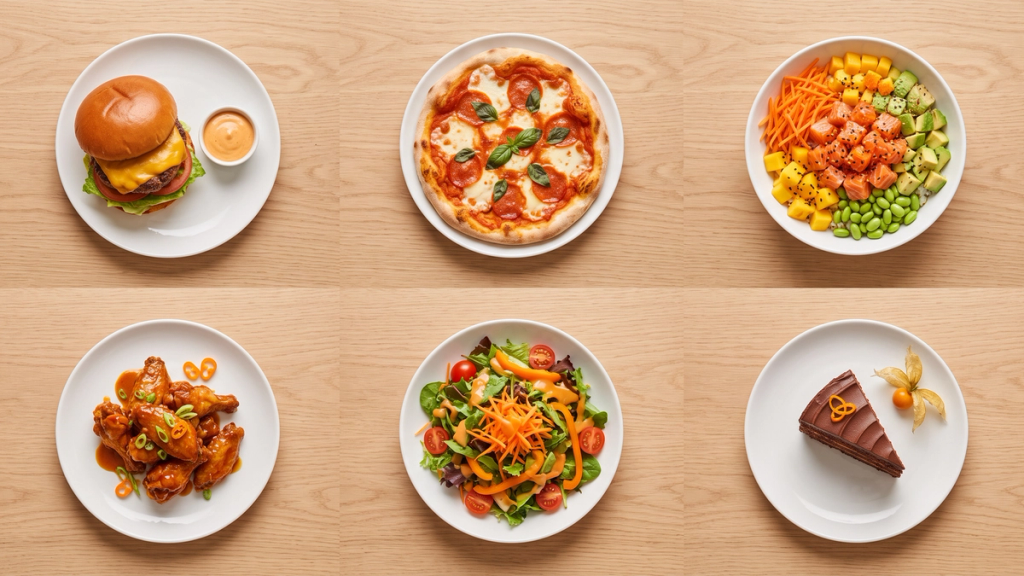
Start with your best-seller. Get its surface, light, angle, and size in the frame right, and use it as the reference for every other dish. Then do the rest of the menu in one sitting, so nothing drifts.
In SecretSauce, the DoorDash style keeps every dish on the same surface, in the same light, at the same size in the frame. Make your first round with only your best-seller ticked, and once you're happy with it, generate the rest.
How to make your DoorDash menu photos in SecretSauce

SecretSauce's Menu photos turns a menu's worth of phone shots into DoorDash-ready photos in one batch. A test photo takes about a minute, and a full menu takes a few minutes. Menu photos is on Lite and up.
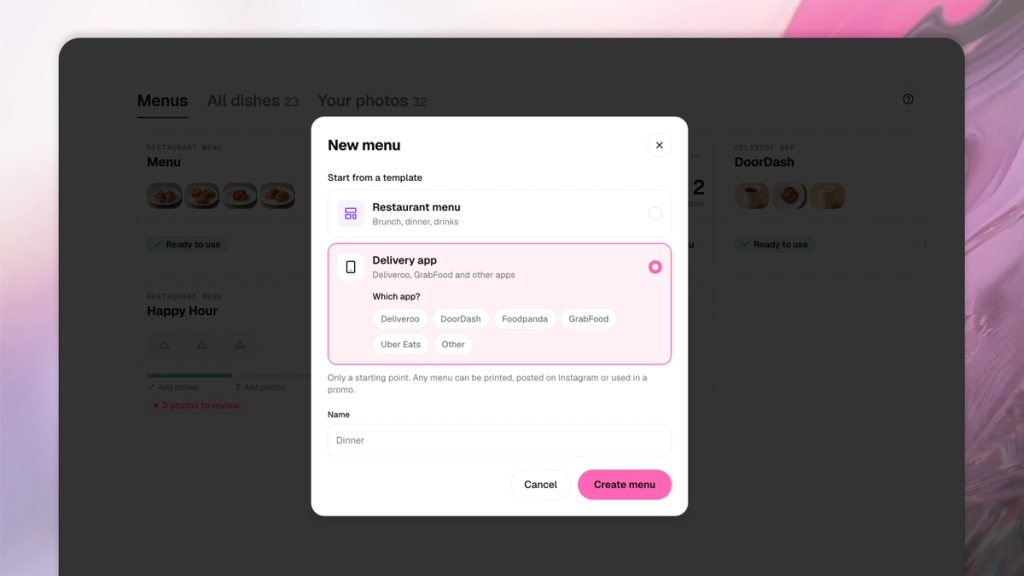
- Start a DoorDash menu. Go to Menu and click "New menu." Under "Start from a template," pick "Delivery app," then "DoorDash," and click "Create menu"
- Add your dishes. Click "Add dishes," then "Upload PDF or image" for your current menu, or "Paste website link" and "Read." Check the dishes it found
- Add your phone photos. Open each dish, click "Add photo," upload the photo, and tick "Also use as the dish card's reference photo"
- Make a test photo. Click "Generate photos," tick only your best-seller, check the credit cost under "Before you generate," and click "Generate photos”
- Review and match the rest. Open "Review photos" and check the photo against the plate. Approve it or click "Redo." Then generate the rest of the menu, up to 100 dishes, check them the same way, and click "Approve all"
- Download and upload. Click "Use this menu," then "Download photos." Upload the photos from the zip to your items in the DoorDash Merchant Portal
Get your DoorDash menu photos done this week
You can tell whether your new photos are performing in your DoorDash Merchant Portal. If your photo is approved, it'll just go live, and if it's rejected, you'll get an email that says why.
Good food photography for restaurant menu listings helps you in two places: menus with item photos can sell more on DoorDash, and customers get the dish they saw when they tapped. With SecretSauce, a whole menu of DoorDash photos takes a few minutes and your phone, so a new dish never has to wait for a photographer. You can use the same photos to make your restaurant stand out on Google Maps.
Frequently asked questions
Do I need a professional camera for food photography for restaurant menu listings?
No. A recent phone camera takes photos far bigger than DoorDash's 1400 × 800 minimum. Light and focus matter more than the camera. Tap the dish on your screen to focus before you shoot, and in low light, rest the phone on something steady or use a tripod, as DoorDash suggests.
Does DoorDash offer free menu photography?
Yes, for eligible merchants. DoorDash offers a free professional photoshoot with up to 20 photos of your menu items and a header shot, and you pay for the food. You can use those photos on DoorDash, your website, and social media, but not on other delivery apps, so you'll still need your own photos for Uber Eats and for any dish you add later. If you're eligible, book it, then use one of its photos as the reference when you add a dish, so the menu still matches.
Can I stop DoorDash from adding photos from Yelp or Instagram?
Yes. Ask Merchant Support to stop adding photos. DoorDash never replaces a photo you upload yourself, so a photo of your own on every dish also keeps Yelp shots off your menu.
Does each version of a dish need its own photo?
If they're listed as separate items, yes. DoorDash's own example is a "Beef Taco" and a "Chicken Taco," which each need their own photo, while a single "Taco" item can use one. Reusing the beef photo for the chicken taco counts as a duplicate and gets rejected.
Can I use my DoorDash photos on Uber Eats?
Yes, if they're your own photos, but resize them first, because Uber Eats uses a squarer 5:4 shape. In SecretSauce, start a second menu with "New menu," "Delivery app," then "Uber Eats." It uses the "Uber Eats — Inside View" style at 1600 × 1280 and shows a burger or wrap cut open only if your own photo shows it cut. See our Uber Eats photo requirements guide for the full size and style rules.