MCP
Connect the SecretSauce MCP to ChatGPT, Claude, and more AI tools to easily generate on-brand content.
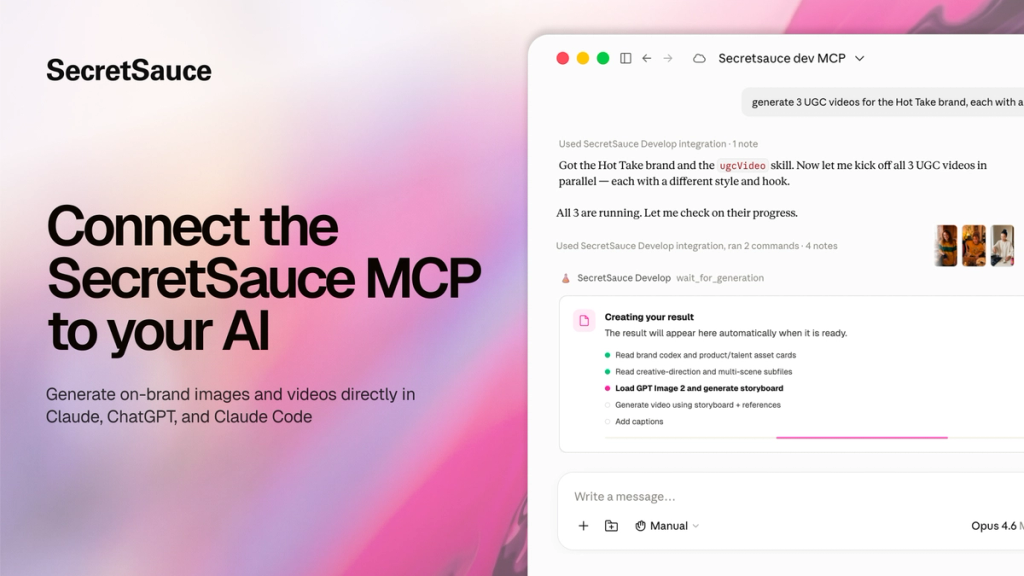
Use the SecretSauce MCP directly inside Claude, ChatGPT, Claude Code, or any MCP-compatible tool to generate on-brand images and videos, browse your brand’s content, and iterate on creatives.
The SecretSauce MCP is available to Pro users and above.
Before you start
You'll need a SecretSauce account. If you don't have one yet, sign up at app.trysecretsauce.ai.
Connect to Claude
Note that the MCP is only available on Claude paid plans.
- Open claude.ai or Claude Desktop and on the left menu go to Customize → Connectors.
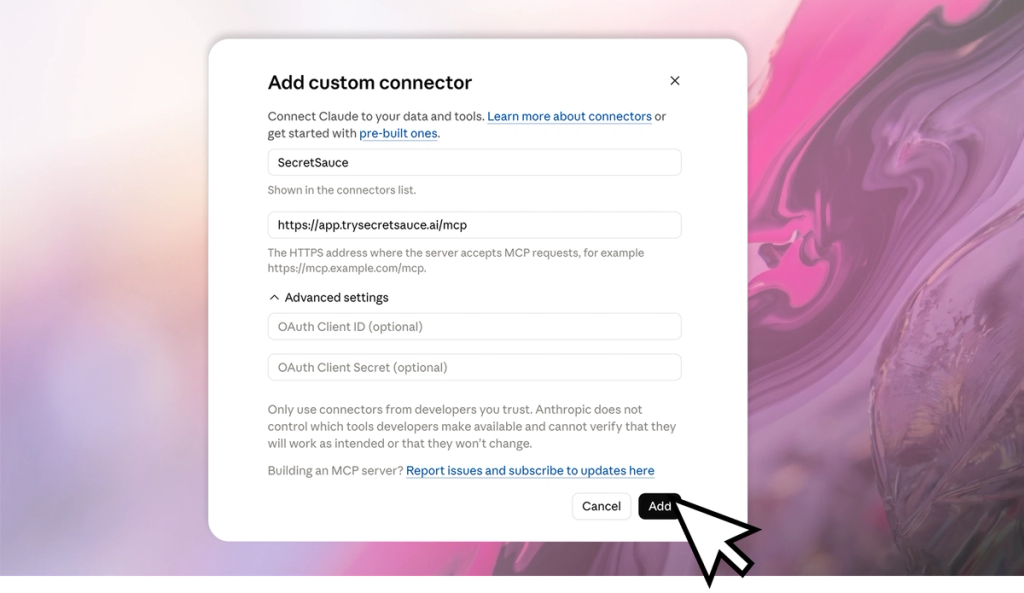
- Tap +Add then Add Custom Connector
- Name it SecretSauce and paste this URL: https://app.trysecretsauce.ai/mcp
- Click Add, then Connect.
- A SecretSauce sign-in window opens in your browser. Sign in, choose the team you want to work with, and approve access.
- Start a new chat in Claude, make sure SecretSauce is enabled in the tools menu, and describe what you want SecretSauce to do first.
Connect to ChatGPT
Note that the MCP is only available on ChatGPT Plus, Pro, Business, Enterprise, and Edu plans. If you're on a ChatGPT Business or Enterprise workspace, an admin may need to allow custom MCP connectors first.
- Open chatgpt.com, go to Settings → Apps → Advanced settings and turn on Developer mode.
- Go to Settings → Connectors and tap Create.
- Fill in:
- Name: SecretSauce
- Description: Create on-brand images and videos with SecretSauce.
- MCP server URL: https://app.trysecretsauce.ai/mcp
- Authentication: OAuth
- Save. The first time you use it, ChatGPT will open a SecretSauce sign-in window in your browser. Choose your team and approve.
- In a new chat, open the + / tools menu, enable SecretSauce, and describe what you want SecretSauce to do first.
Connect to Claude Code
- Run this command in the terminal:
claude mcp add --transport http secretsauce https://app.trysecretsauce.ai/mcp
- Inside a Claude Code session, run
/mcp - Complete the browser sign-in and choose the team you want to work in.
Connect to other MCP clients
If your tool supports remote MCP servers (Cursor, Windsurf, etc.), point it at https://app.trysecretsauce.ai/mcp and complete the OAuth sign-in when prompted.
What can you do with the SecretSauce MCP?
1. Browse your brand: Ask your AI to pull up your brand workspaces, read your Brand Brain, or search your content library by name or tag. Image results include inline previews, and videos include playback links, so you can check what you have without opening SecretSauce on the web.
- "What does our Brand Brain say about tone of voice?"
- "Find our latest product hero shots"
- "Show me the assets tagged for the summer campaign"
2. Generate on-brand images and video: Create on-brand content the same way you would in SecretSauce. Your AI chooses the right SecretSauce workflow for your brief, whether that's a UGC video, product photoshoot, social carousel, video ad, or something else.
- "Generate three on-brand images for the spring launch"
- "Make a UGC-style video for this product using our brand colors"
- "Create a model photoshoot from these reference images"
3. Upload references: Drop in up to 10 files at a time (up to 100 MB each), including images, videos, audio, Figma files, and fonts. Public HTTPS links work as references too.
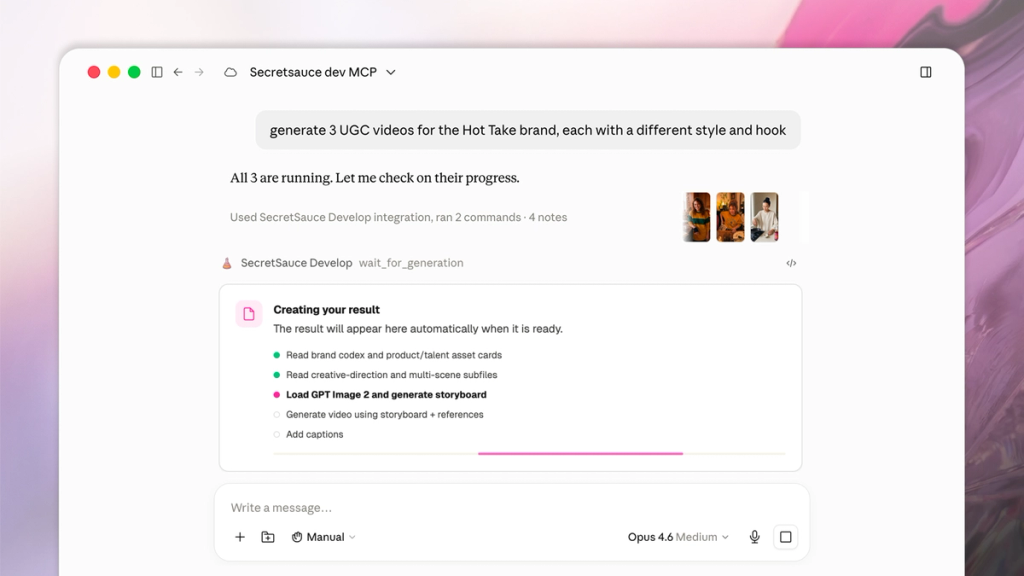
4. Follow progress live: Image and video generation can take a few minutes. In Claude, a live widget updates with step-by-step progress. In any AI, you can ask "what's the status of my generation?" to check in. Closing the chat never cancels a running generation - your work is durable and you can pick it up later.
5. Approve decisions mid-workflow: Some workflows pause to ask for your input like which product shot to feature, whether to approve a script before generating the voiceover, or which Asset Card to use as a style reference. You'll see the question in an interactive form. Answer it and the generation picks up where it left off.
6. Iterate and revise: Ask for changes to any finished generation and your AI keeps the context from your conversation.
- "Make the hook punchier”
- "Same video but in 9:16 for Reels”
- “Try a version with the blue background"
7. View your history: Ask to list everything you've generated, retrieve any past generation by its ID, and continue where you left off, even days later.
- "Show me everything I generated this week"
Troubleshooting and FAQ
1. Authorization fails or I get an access-denied error. MCP access may not be enabled for your account yet. Contact the SecretSauce team with the email you use to sign in.
2. I connected to the wrong team. Disconnect the connector in your client's connector settings and reconnect. You'll be able to choose a different team during sign-in.
3. Can I use the same account with multiple AI clients? Yes. Connect Claude, ChatGPT, and Claude Code at the same time. Each authorizes separately.
4. My upload won't go through. Uploads support up to 10 files at a time, 100 MB per file. If a file is over the limit, resize or compress it first.
5. A generation seems stuck. Images and videos can queue for several minutes. In Claude, the live widget updates automatically. In any client, ask for a status check. The work continues in the background even if you close the chat.