Tips for better results
How to get the most out of SecretSauce from day one
1. Complete your Brand Brain
The best thing you can do in SecretSauce is spend your first 20 minutes getting your Brand Brain right.
Your Brand Brain holds your visual identity, voice, values, founding story, and more. When it's complete, everything you create afterward comes out on-brand because SecretSauce already knows what you look and sound like.
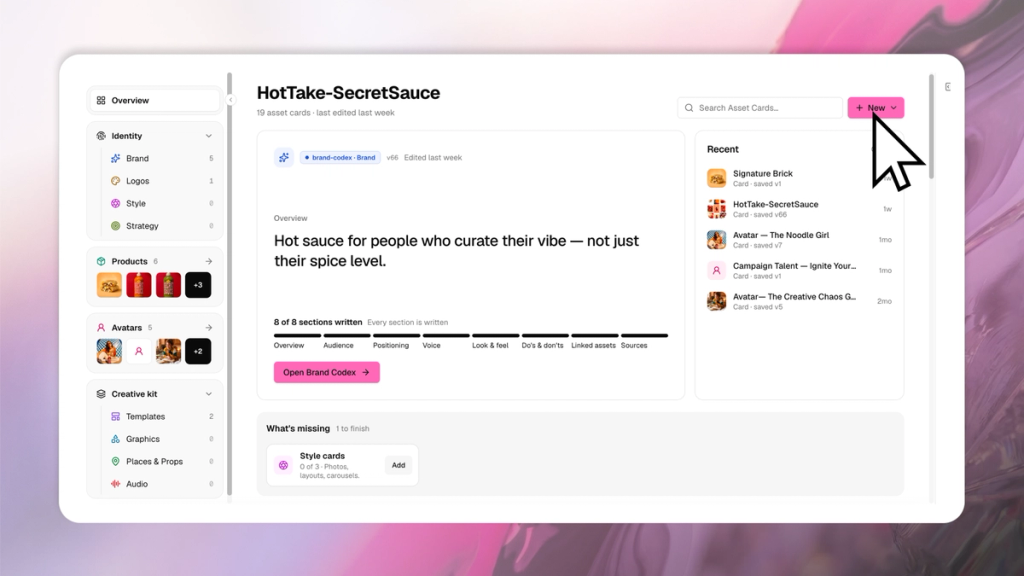
When it's thin, you end up writing long detailed prompts just to get something that looks like you, then reworking the output anyway. This is why AI content often takes time to refine.
Tap My Brand in the left menu to manage your Brand Brain. Add as much context about your brand as possible: examples, references, a clear description of your visual identity. You can also use the AI assistant on the right panel to help fill it in.
20 minutes here saves you hours later.
2. Create and use Asset Cards in every prompt
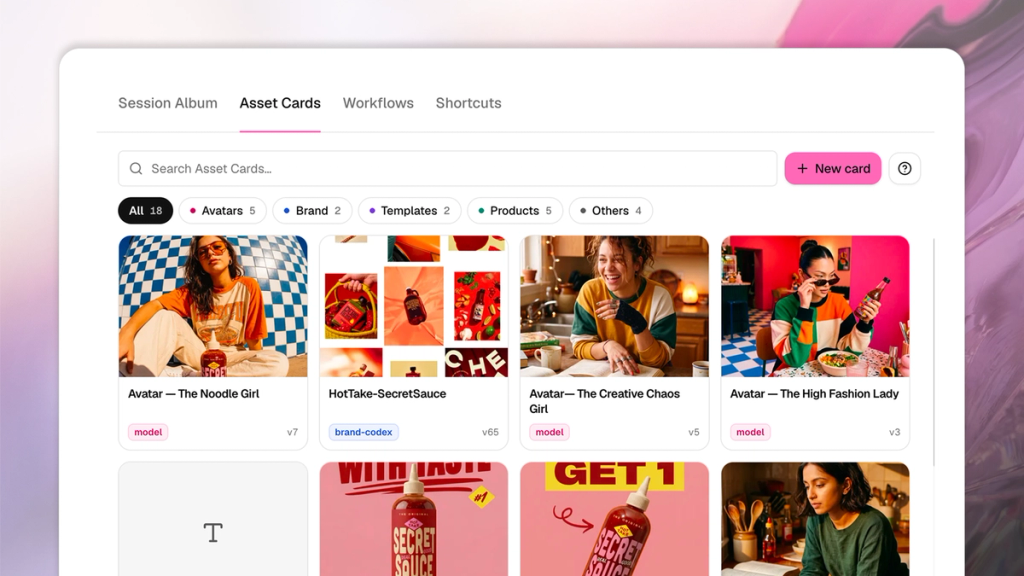
Create asset cards for anything that needs to look exactly the same every time like your logo, product shots, UI screenshots, avatars, packaging, etc.
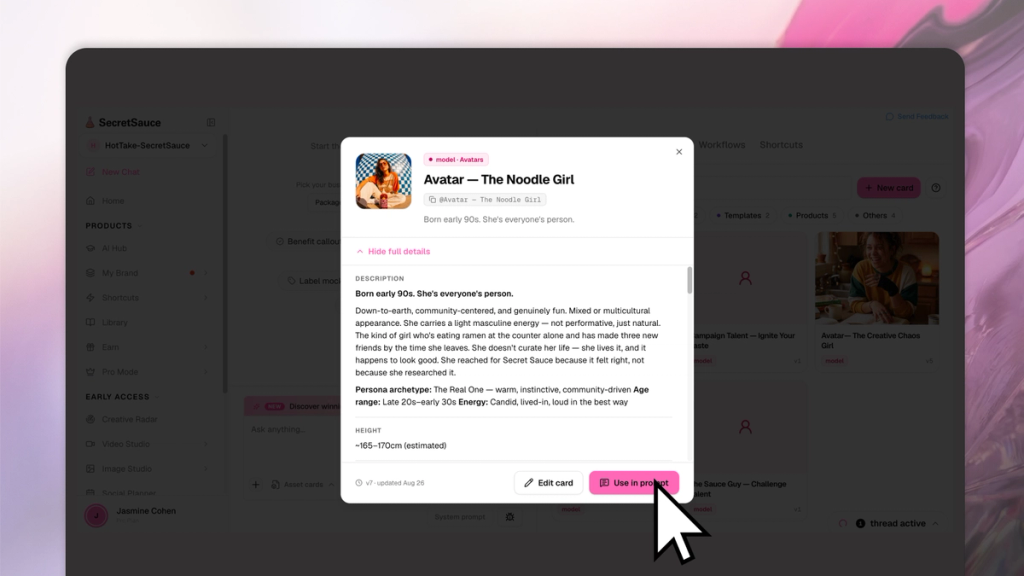
SecretSauce treats a locked asset card as fixed reference material, which means it reproduces it faithfully instead of redrawing or distorting it. This matters most for the things AI tends to mangle: exact logos, real product packaging, screenshots of your interface.
If you find yourself describing the same product, screen, or person more than once, that's your sign to make it a card.
Create asset cards by tapping My Brand in the left menu, then New.
Use asset cards in your prompts. Always tag an asset card with the @ symbol or tap Asset Card on the bottom of the chat box and choose one. If you don’t choose or tag the asset card, SecretSauce doesn’t know to use it and your content may not come out as you’d like.
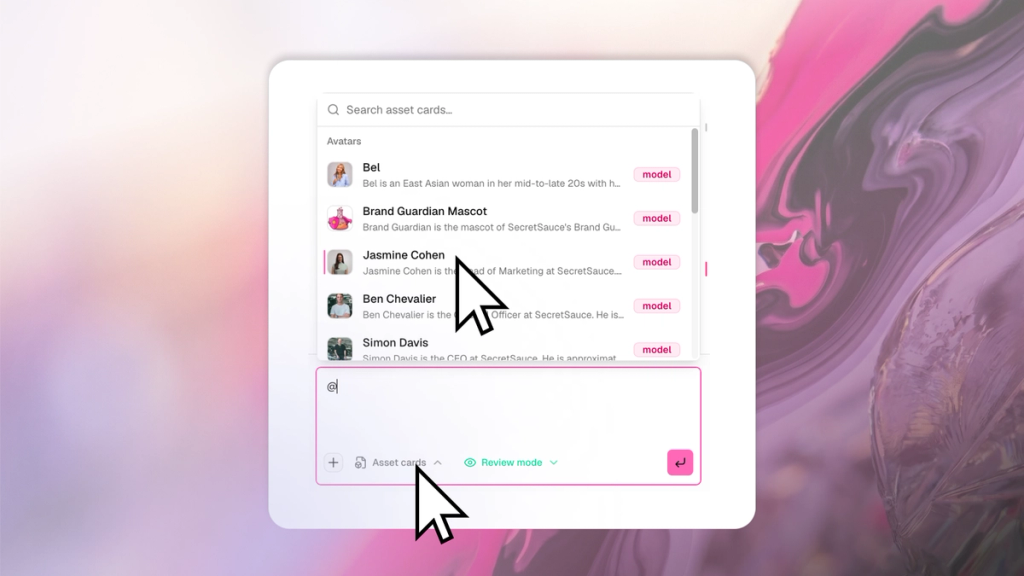
The asset cards worth building early:
- Product asset cards: Upload a clear reference photo with accurate color, shape, packaging, and details. A white background works best. If the photo you have is messy, SecretSauce will automatically clean it up first then lock the clean version as your card.
- Font asset cards: Upload the exact font file and define its usage rules like, which font is for headlines, which is for body, what weights, hierarchy, and capitalization to use.
- Style asset cards: Lock a specific visual style for your photography or graphic design, so the overall look and feel stays on-brand across every generation. Upload a few references of a visual style and ask SecretSauce to turn it into a style asset card.
- Avatar asset cards. Refine the person or avatar you want to use before generating any user-generated content. Be specific about their age range, hairstyle, outfit, voice, cadence, and overall look. The more defined the card is, the more consistent they'll look across your content.
- Character and mascot asset cards: If your brand uses a mascot or illustrated character, lock its appearance, outfit, proportions, and recognizable features so it stays consistent across different visuals.
3. Be clear in your prompts and use plain words
The clearer your prompt, the closer the content will be to what you had in mind. Here are 3 habits that make the biggest difference:
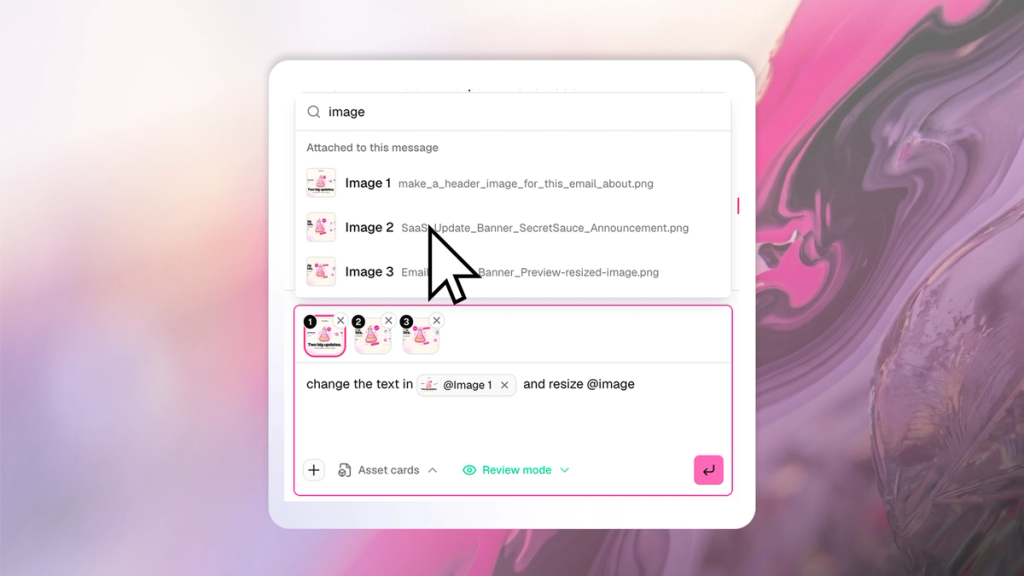
Tag the file you’re referencing. SecretSauce can't read your mind about which reference you meant.
If you want to reference a specific file that you uploaded to your prompt, make sure to tag it with the @ symbol. SecretSauce automatically numerates each file in the prompt box, making it easy to choose the file you want.
If you want to reference a specific file in your session album, hover over the file on the right panel, tap the three dots, then choose Link to chat.
- Weak: “Change the text on the image on the left and resize the image on the right”
- Strong: Change the text in @image1 and resize @image2”
Define what "better" means. "Make it better" gives SecretSauce nothing to act on.
- Weak: "Please make it better."
- Strong: "Make the layout cleaner, reduce the text size, and give more spacing around the product."
When something's wrong, name what should stay and what should change. Reacting without explaining the gap makes the fix less clear.
- Weak: "Why don't you understand?"
- Strong: "The product should stay centered, but in this version it moved left. Keep the same composition and only change the background."
Don't paste ChatGPT or Claude prompts in verbatim. Generic or overly long prompts confuse SecretSauce. Write the prompt in simple terms so it reflects your goal, the asset you're using, and the exact result you want. SecretSauce enhances your prompt in the background.
4. Stay in Review Mode to save credits
SecretSauce has two modes that control how much it does on its own: Review and Yolo.
Review mode is the safer default. It shows you what SecretSauce is about to generate and waits for your go-ahead, so you can catch a wrong direction before it spends credits on something you'll throw away.
Yolo mode moves faster and makes more decisions for you, which is great once you trust the direction. But it can burn credits on output you didn't want if the concept isn't locked in yet.
5. Create videos step by step, one frame at a time
Video uses more credits than images, so you want to make sure the plan is right before you commit.
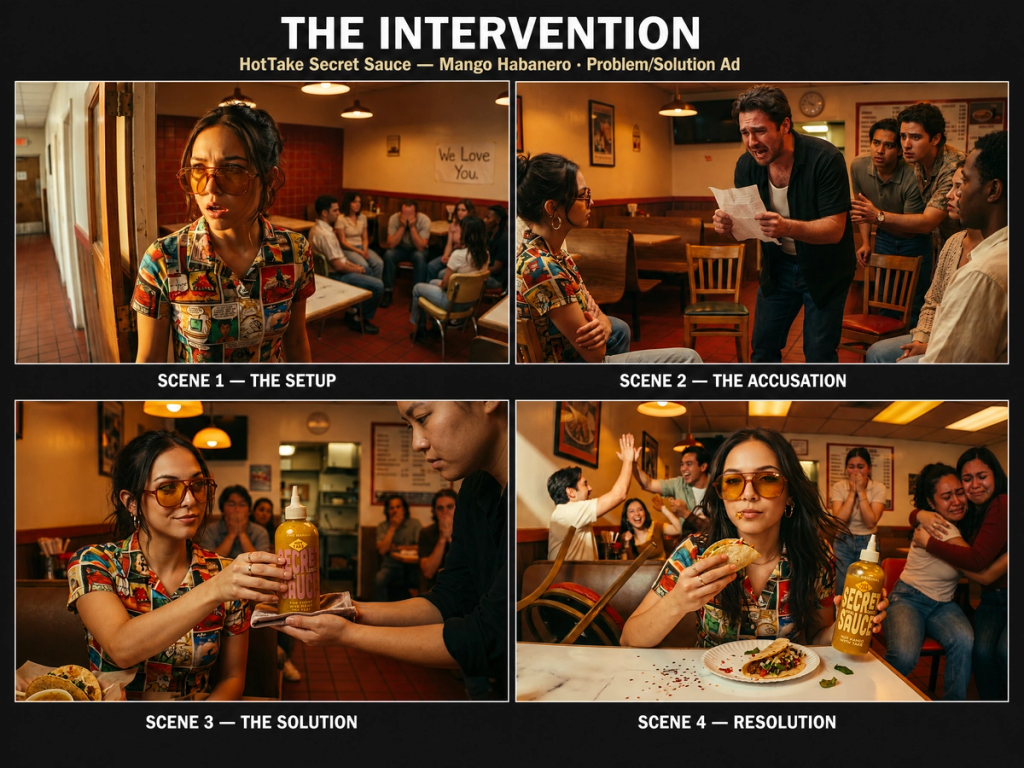
The good news: SecretSauce handles the hard part for you. When you ask for a video, it works out the concept, writes the script, and generates the key frames as a storyboard on its own so you don't need to spec it all out upfront.
The best thing you can do is review each step. Approve the storyboard frames and script before any video is generated, and for longer or multi-scene pieces, generate scene by scene rather than all at once. That way you catch a wrong direction while it's still cheap to fix, and one bad frame doesn't cascade through the rest of the video.
If something breaks, go back to the last frame or scene that worked, tap revert, and keep building from there.
6. Avoid overly long chat sessions
Ideally, you want to use a new chat window for each task. This keeps your workflow organized and helps avoid the quality drop that can creep into very long conversations.
So each time you want to create something new, tap New Chat and get started. You can run as many chat sessions in parallel as you’d like.
7. Revert, regenerate, or fork when things go wrong
If something went off track, you have 3 ways to recover without starting over:
- Edit or revert the prompt. Go to the prompt that broke the output, hover, and tap revert. You’ll be able to edit the prompt and regenerate everything downstream from that point so you don’t have to redo the work again.
- Type "regenerate…" to your next prompt. When an output feels stuck, type "regenerate…" in your next prompt to refresh it. This is especially useful for scale edits.
- Fork the prompt. When you're deep into a concept and want to take it in a different direction - a different audience, a different format, a different market - don't start a new chat and rebuild your context from scratch. Hover over the prompt and tap Fork. This is also useful when you want to compare two creative approaches before committing to one. Run both in parallel, see what lands, and keep whichever works.
8. Build Workflows for tasks you repeat
If you give SecretSauce the same kind of instructions regularly (weekly social posts, product launch assets, email headers), save those instructions as a workflow.
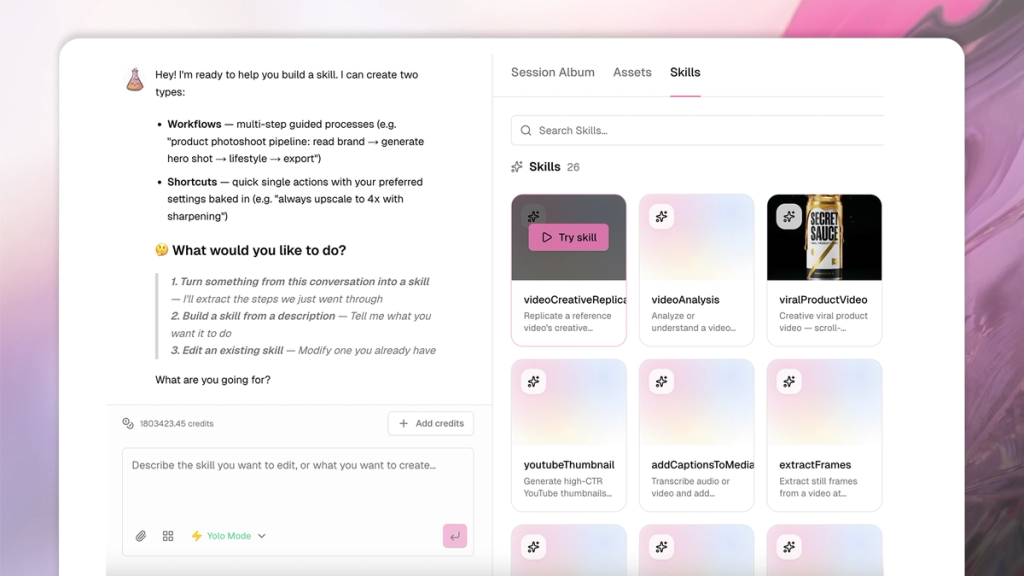
A workflow captures multiple steps: the format, the sizing, the tone, the number of variations, whatever you'd normally type out each time. Learn more here.
Once it’s saved, you call it and go straight to output instead of re-explaining the task from scratch.