Social planner
Generate Instagram posts and schedule directly from SecretSauce.
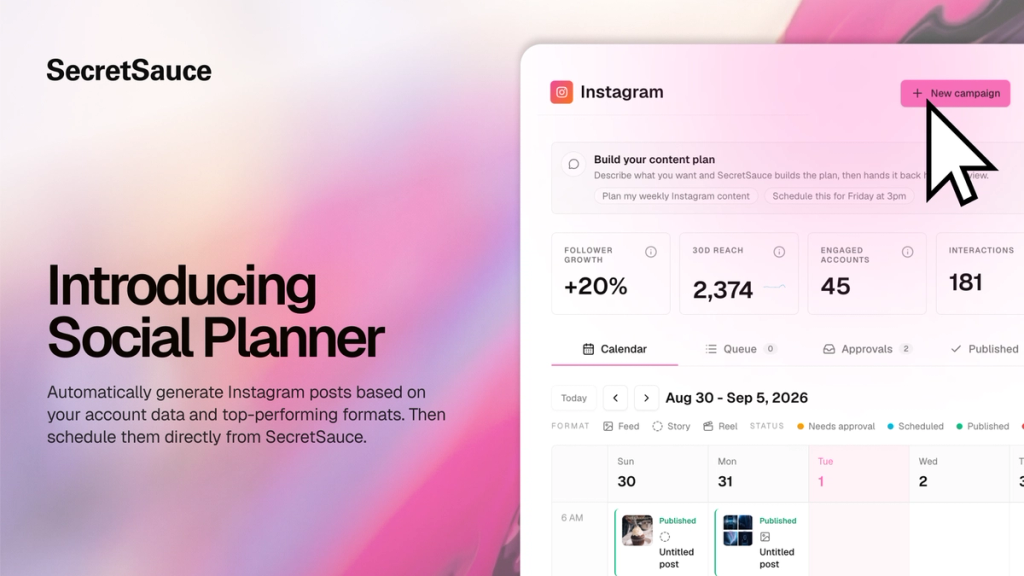
Posting consistently is the single biggest lever for growing on Instagram. But staying consistent means knowing what to post, what format to use, and what's actually going to perform for your audience.
Social Planner analyzes your Instagram account, builds you a social media content plan, generates each post in your brand voice, schedules everything direct to your account, then feeds real performance data back into next week's plan - all from SecretSauce.
Please note the Social Planner is currently available to select users in early access. Apply here to get access.
What you can do
- Analyze your Instagram account: Get a profile audit and analyze follower growth, reach, engaged accounts, interactions, and post performance in one dashboard.
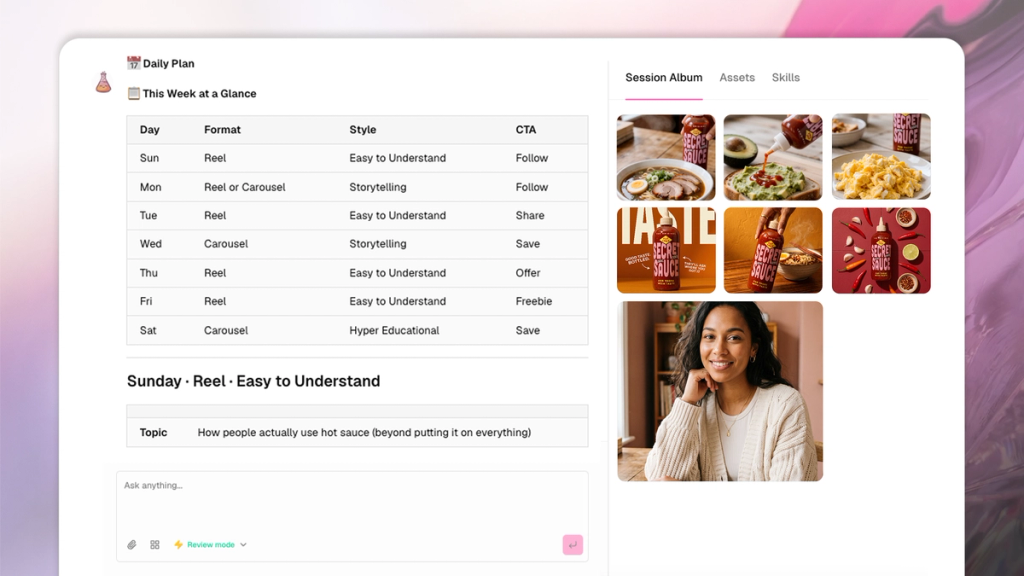
- Generate a social media strategy and content: Get a full week of posts with formats, hooks, CTAs, and hashtags, calibrated to your account data and top-performing content. Each post is created in your brand voice.
- Approve and schedule direct to Instagram: Review, edit, and schedule every post. Approved posts publish straight to your account at the time you set.
- Track post performance: Every published post feeds real performance data back into your dashboard and next week's plan.
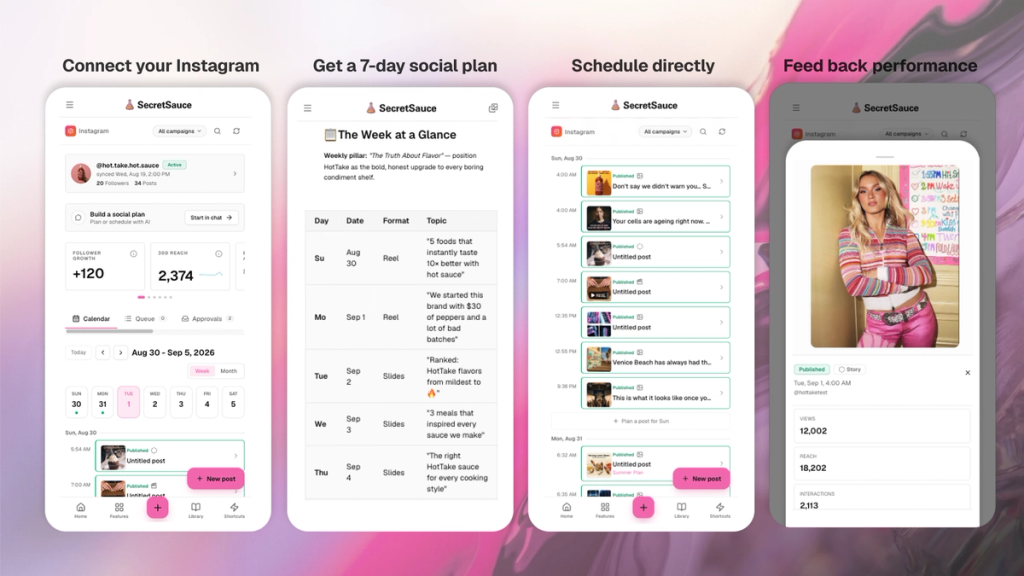
How to plan a week of social posts
Chat with SecretSauce to plan, create, and schedule a full week of Instagram posts in one sitting.
1. Connect your Instagram account: Open Social Planner in the left menu and tap Add New Account. Once connected, SecretSauce can read your live performance data and publish direct to your feed.
2. Start a new plan: In the Social Planner, tap Build My Plan. SecretSauce opens a new chat window to start building your social media plan together.
3. Answer a couple of quick questions: SecretSauce asks about any priority products or active promos for the week. Skip if there's nothing specific. The plan still works from your account data.
4. Review the week at a glance: You get a 7-day table with format, topic, and CTA for every day, plus a profile audit with the top fixes and a summary of what's performing on your account.
5. Generate the posts: Pick a day to start. For each slot you see the topic, hook, CTA, and (for Reels) a link to a proven viral video to reference. Approve to generate the post, tweak the direction, or push back to draft.
6. Schedule the whole week in one click: Type "schedule all 7 posts" in chat. Everything queues at once on a single approve-all card with an adjustable start date.
How to post directly to Instagram
You don't need a weekly plan to post. Create a one-off story, post, or reel any time.
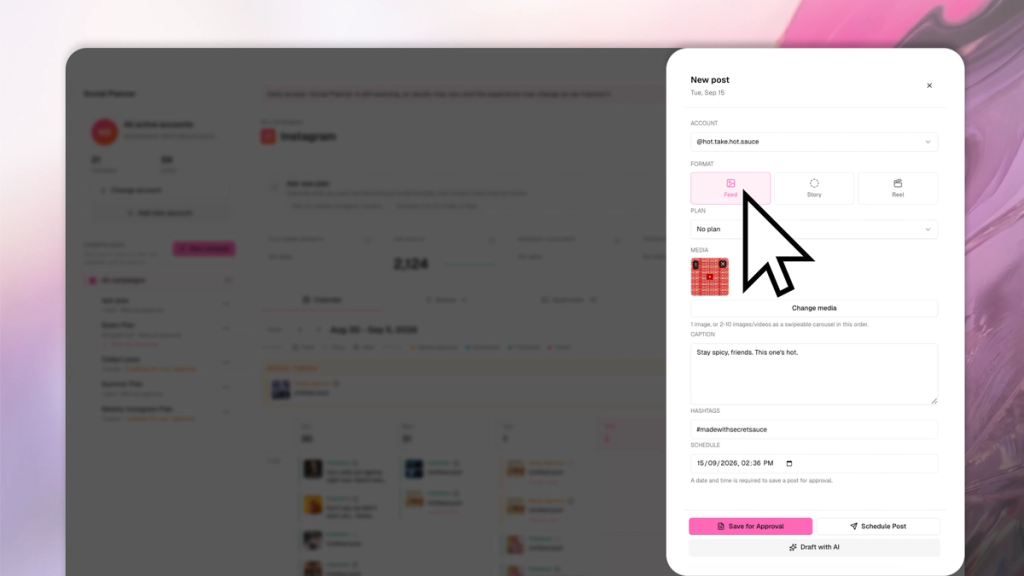
1. Tap New post on the top right of the Social Planner.
2. Draft with AI or fill it in yourself: Fill in the caption, hashtags, and media yourself. Or tap Draft with AI to open a chat and generate the post. SecretSauce writes the caption, generates the image or video, and drops it back into the Social Planner.
3. Choose the post type: Feed, story, or reel.
4. Save as a draft, schedule, or publish now
How to use the calendar
Every AI generated post lands in the calendar as a draft waiting for your review. This is where you approve, schedule, and track everything.
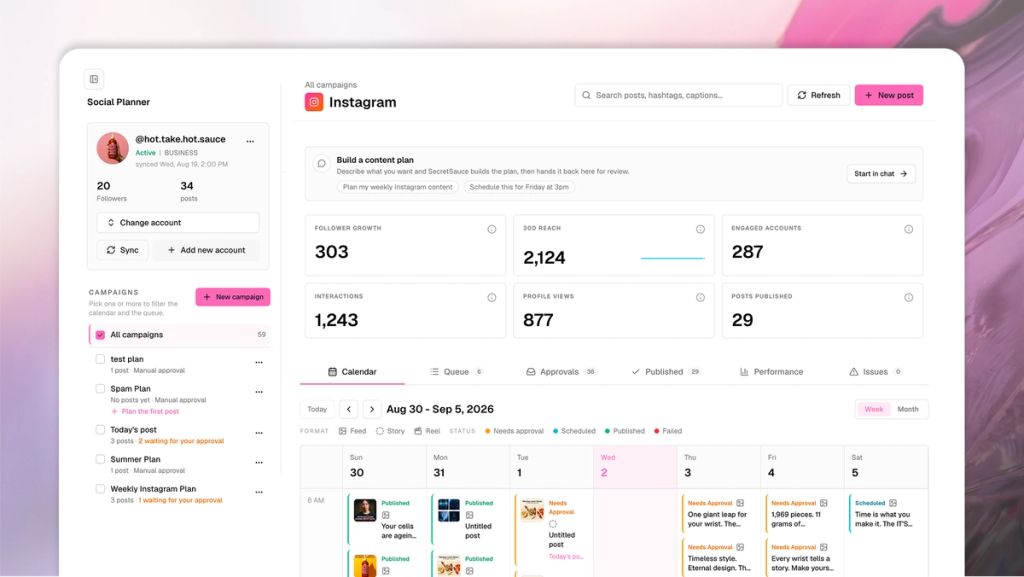
1. Filter by campaign: In the left sidebar, tap New Campaign to group a set of posts (like a product launch or seasonal push). Check any campaign to filter the calendar.
2. Track your account at a glance: The metrics row at the top of the calendar shows your follower growth, 30-day reach, engaged accounts, interactions, profile views, and posts published - all pulled from your connected account.
3. Navigate the tabs:
- Calendar: See all your published, scheduled, and drafted posts on a weekly or monthly view.
- Scheduled: View a list of all posts waiting to be scheduled. Tap to publish now or delete the post.
- Approvals: See all the posts waiting for your review. Review the caption, swap the image, adjust the time, then approve. Approved posts publish direct to Instagram at their scheduled time.
- Published: Get a list of all the posts that have gone live. Tap one to break down performance insights.
- Performance: View analytics for each post at 30, 60, or 90 days.
- Issues: See any posts that have failed to publish.