Set Up Dish Photos
Turn a phone photo, or no photo at all, into a consistent, studio-quality shot for every dish on your menu.
Turn a phone photo or no photo at all into a consistent, studio-quality shot for every dish on your menu.
What you can do
- Clean up existing phone shots into on-brand images.
- Generate a photo for one dish at a time or for your whole menu at once.
How to restyle dish photos
- Tap Menu on the left of the SecretSauce platform.
- To enhance existing photos for an entire menu, choose a menu and tap Generate Photos on the top.
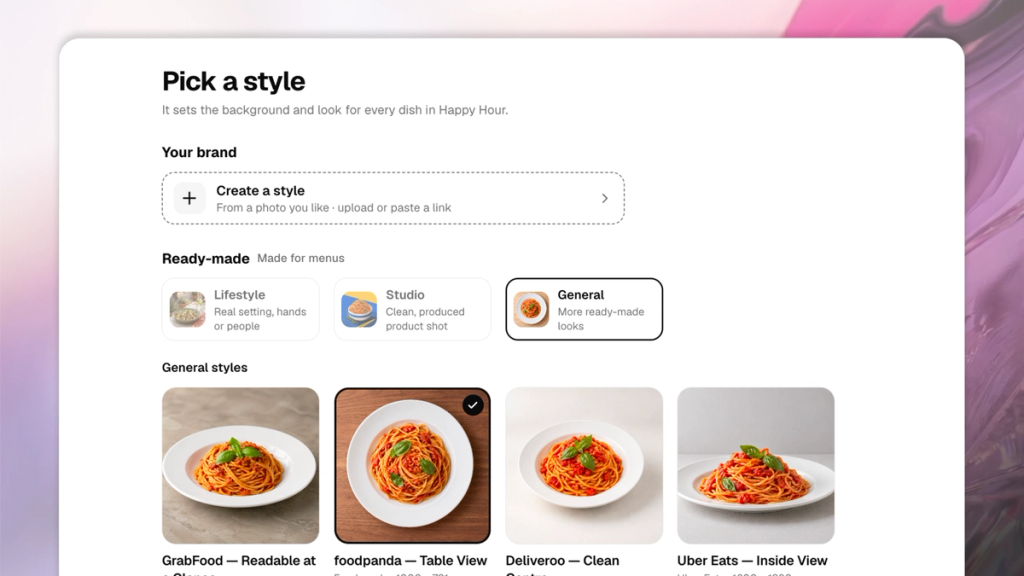
- Pick a style: choose a ready-made look, or build one from your own reference photo.
- Select all the dishes you'd like to generate photos for in that style. You can select dishes that have an existing photo or not.
- Tap Generate photo.
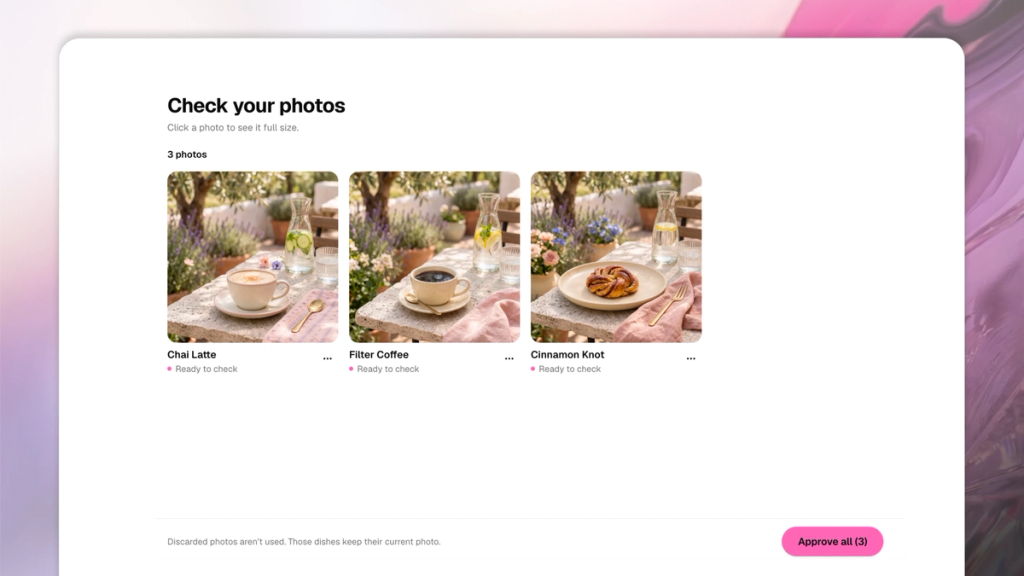
- Once it's done generating, tap Review on the top to manually check the photos. If you're unhappy with a specific photo, tap it to redo or discard it. If you're happy, tap Approve.
How to generate dish photos from a description
- Tap Menu on the left of the SecretSauce platform.
- Tap All Dishes then tap Generate Photo on a specific dish.
- Pick a style: choose a ready-made look, or build one from your own reference photo.
- Tap Add style to my menu to apply it.
- SecretSauce generates a photo for every dish still missing one, in that style.
- Review the results on Your photos (under Menu) or on each individual dish.
Tips for dish photos
- Pick your style before you start generating. Changing it afterward means re-generating every photo that no longer matches.
- Each generated photo saves to that dish's Asset Card in My Brand, so it's reusable in social posts, not just on the menu.
- If one photo comes out wrong, fix it with Change photo on that single dish, don't regenerate the whole menu over one miss.