Home
The Home screen in SecretSauce is built around what your restaurant needs to post and print, from dish photos to menu updates.
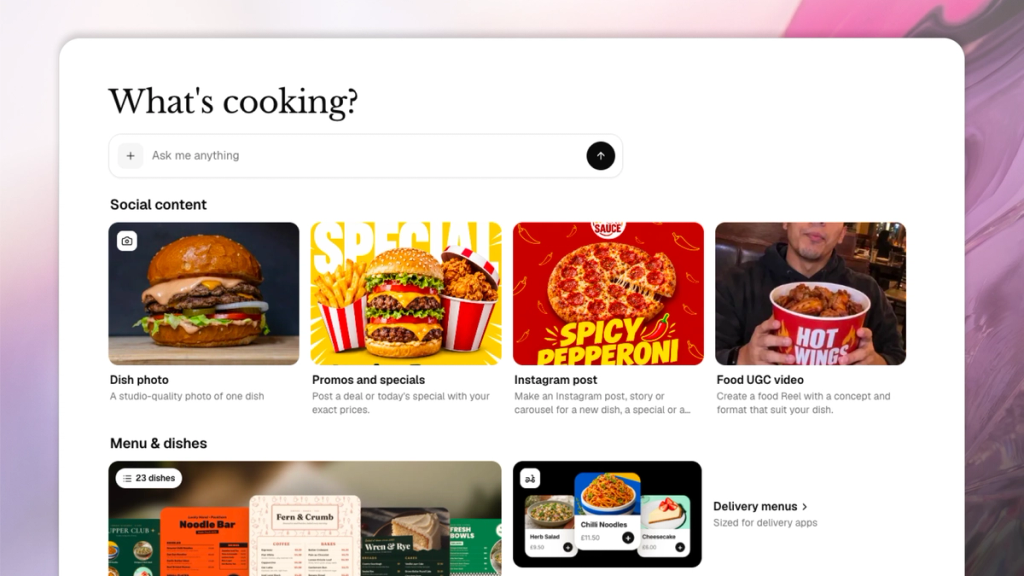
You land on Home every time you open SecretSauce. It's built around what your restaurant needs to post and print: dish photos, a special, a menu update.
What's on Home
- Ask me anything: Open prompt box for anything not covered by a tile below. Type what you want, like "a launch carousel for a new truffle pasta special," and SecretSauce gets to work.
- Social content: One-tap starting points to create, for example a dish photo (a studio-quality photo of one dish), promos and specials (a deal or today's special with your exact prices), Instagram post (a post, story, or carousel for a new dish, special, or holiday), and Food UGC video (a Reel with a concept and format that suit your dish).
- Menu & dishes: Live view of your menu, with dish count and thumbnails, plus direct links to Delivery menus (sized for delivery apps) and Print menu (always matches your prices).
- Your setup: A checklist in the top right tracking how complete your Brand Brain is: Logo, Menu, Photo style, Fonts. The more complete it is, the more on-brand everything you generate comes out.
How to use Home
- Tap any Social content tile to start that kind of content right away.
- Check Your setup in the top right and finish any step marked "Next" first. It affects every photo SecretSauce generates for you from here on.
- Use Menu & dishes to jump straight into your menu, or pull a delivery or print version without digging through the left menu.
- Type anything not covered by a tile straight into Ask me anything.
Tips for using Home
- Finish your setup checklist before a big content push. Every missing piece like logo, photo style, or fonts is something SecretSauce has to guess at otherwise.
- The tiles on Home shift based on what your menu needs. If most of your dishes still need photos, Dish photo stays near the top.