Generate Your Menu
Turn your dish list into a print-ready menu or a photo set sized for delivery apps like Deliveroo and Uber Eats.
Turn your dish list into a menu you can hand a customer or upload to a delivery app.
What you can generate
- Print menu: Print-ready layout built from your dishes, styled to match your brand, that updates automatically when you change a price.
- Delivery menus: Photo sets and layouts sized to meet the listing requirements of apps like Deliveroo and Uber Eats.
How to generate a printed menu
There are 4 ways to design a printed menu layout with SecretSauce:
- Template: You pick a layout option from SecretSauce in the chat.
- Reference image: You upload a menu image and SecretSauce matches its look.
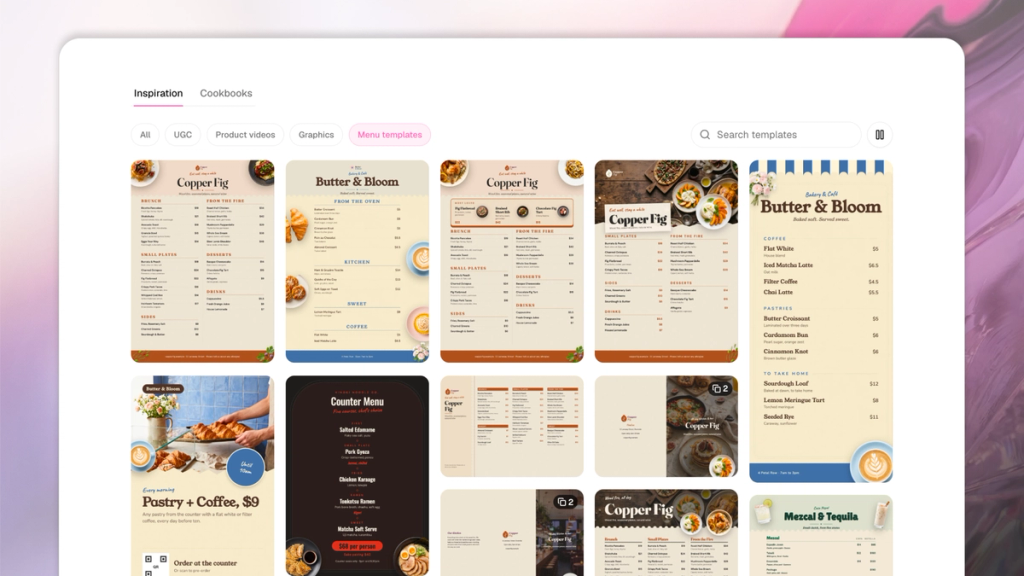
- Inspiration image: You browse the Inspiration page and choose a template you like.
- Custom: You work with SecretSauce to create a layout design from scratch.
Before you generate a printed menu, make sure your menu is marked ready to use. That means all the photos are in and approved.
- Tap Menu on the left of the SecretSauce platform.
- Tap Use this Menu on an existing menu card.
- Tap Print menu.
- SecretSauce will open a new chat. Follow the steps in the chat to create your menu layout. You can choose whether to create the layout from a SecretSauce template, from scratch, or from a reference image.
You can also create a menu by browsing the Inspiration page.
- Tap Content Ideas on the left of the SecretSauce platform.
- Scroll down to Inspiration and choose the Menu templates filter.
- Tap a template to begin creating.
How to create a delivery menu
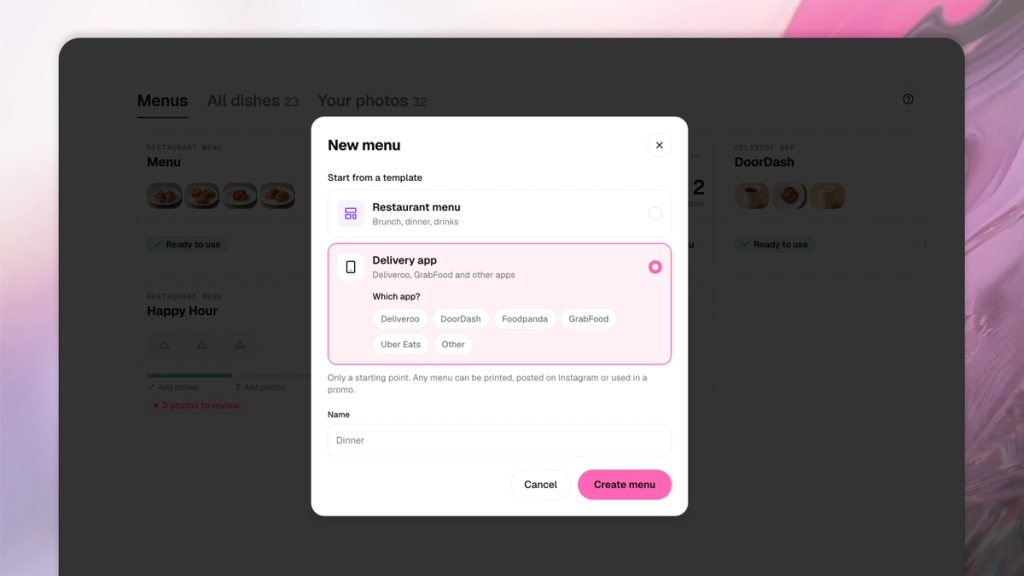
- Tap Menu on the left of the SecretSauce platform.
- Tap New Menu on the top right then Delivery App. Choose the relevant delivery app: Deliveroo, DoorDash, Foodpanda, GrabFood, Uber Eats, Other.
- Tap Add Dishes to begin setting up the menu. You can upload dishes from a PDF, paste a website link, or add a dish manually. You can also choose from existing dishes you've already saved to SecretSauce.
- Fill in all the dish details like type, name, category, price, weight, allergens, ingredients, and more.
- Make sure to add a photo to each dish. You can either upload one yourself or generate them with SecretSauce. To generate them with SecretSauce, tap Generate Photos on the top right.
- Once it's done generating, tap Review on the top to manually check the photos. If you're unhappy with a specific photo, tap it to redo or discard it. If you're happy, tap Approve.
- Tap Use this Menu on the top right then choose Export.
- Upload your dish photos to your app delivery of choice.
Tips for generating menus
- Fix a price or swap a photo in Menu first, then regenerate, both exports pull live from your dish list, so don't edit the output by hand.
- Use the Food listing photos shortcut (under Content ideas) when you only need photos resized to delivery-app specs, without a full menu redesign.